have lots of images in png format (over 250k+ png). Properly formatting and compressing png images can save many bytes of data. How do I compress and optimize png images on my amazon cloud account so that I can save bandwidth on cloudfront cdn account? How do I use an image compressor to create lossless compression on PNG files, with no effect on image quality in bulk using Red Hat Enterprise Linux bash shell?
The following image format is recommended and used by big web sites such as Google / Yahoo / Amazon / Facebook etc:

To display png image size, type, and compression info, enter:
Sample outputs:
The following image format is recommended and used by big web sites such as Google / Yahoo / Amazon / Facebook etc:
- PNG file format is recommended for web.
- GIF file format is recommended for small size images.
- JPG file format is recommended for high resolution photographic-style images.
- Do not use BMPs or TIFFs.
Say hello to optipng
You need to use a tool called optipng. It is a PNG optimizer that recompresses image files to a smaller size, without losing any information. This program also converts external formats (BMP, GIF, PNM and TIFF) to optimized PNG, and performs PNG integrity checks and corrections. This tool can be installed on any server powered by Unix or Linux operating systems.
Installation
First, turn on EPEL repo and type the following yum command to install optipng:
Sample outputs:
# yum install optipngSample outputs:
Loaded plugins: auto-update-debuginfo, protectbase, rhnplugin
0 packages excluded due to repository protections
Setting up Install Process
Resolving Dependencies
--> Running transaction check
---> Package optipng.x86_64 0:0.6.4-1.el6 will be installed
--> Finished Dependency Resolution

Dependencies Resolved

===============================================================================
 Package           Arch             Version               Repository      Size
===============================================================================
Installing:
 optipng           x86_64           0.6.4-1.el6           epel            82 k

Transaction Summary
===============================================================================
Install       1 Package(s)

Total download size: 82 k
Installed size: 181 k
Is this ok [y/N]: y
Downloading Packages:
optipng-0.6.4-1.el6.x86_64.rpm                          |  82 kB     00:00
Running rpm_check_debug
Running Transaction Test
Transaction Test Succeeded
Running Transaction
  Installing : optipng-0.6.4-1.el6.x86_64                                  1/1
  Verifying  : optipng-0.6.4-1.el6.x86_64                                  1/1

Installed:
  optipng.x86_64 0:0.6.4-1.el6

Complete!
How do I use optipng command?
The syntax is:
optipng file
optipng [options] file
optipng [options] input.png
My sample test.png image:
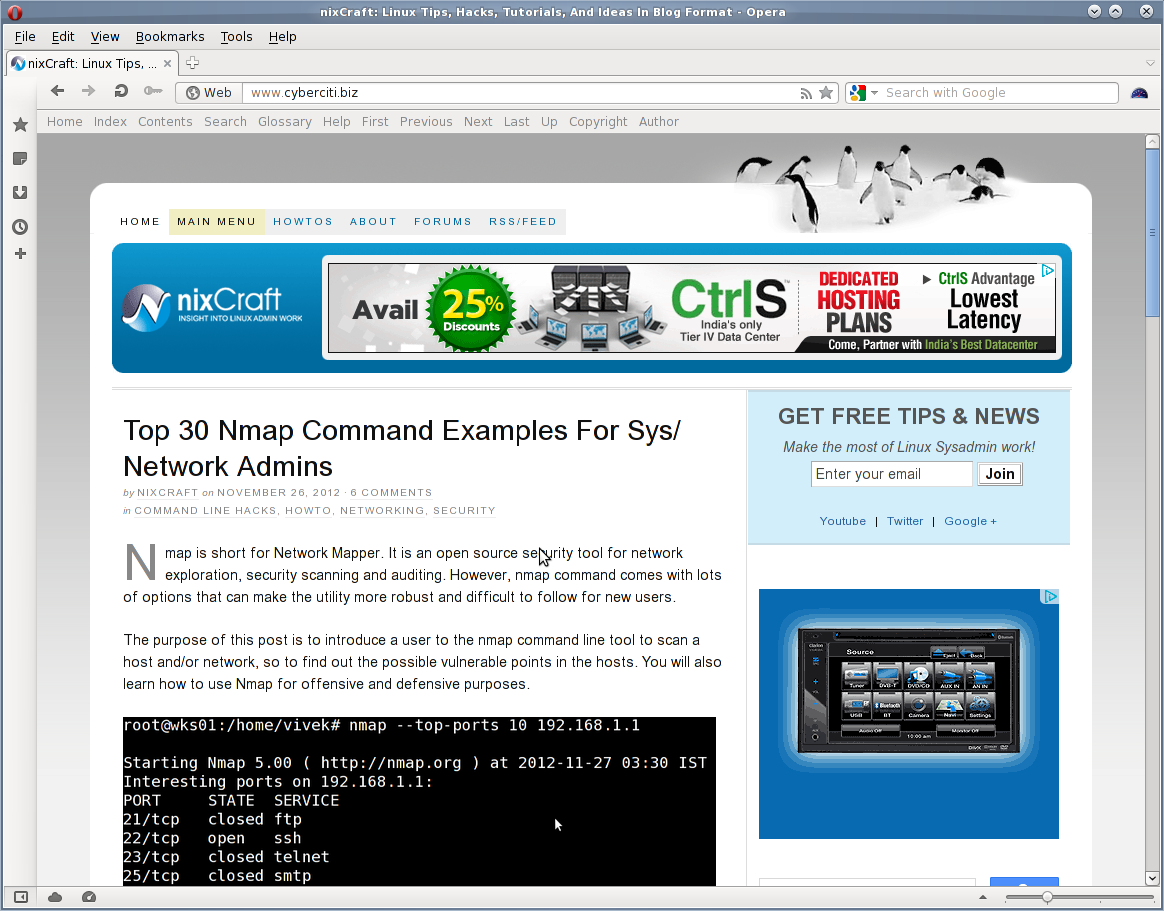
test.png - Original file
To display png image size, type, and compression info, enter:
$ pnginfo -t test.pngSample outputs:
test.png (tiffinfo compatible labels)...
  Image Width: 1164 Image Length: 911
  Bits/Sample: 8
  Samples/Pixel: 3
  Pixel Depth: 24
  Colour Type (Photometric Interpretation): RGB
  Image filter: Single row per byte filter
  Interlacing: No interlacing
  Compression Scheme: Deflate method 8, 32k window
  Resolution: 0, 0 (unit unknown)
  FillOrder: msb-to-lsb
  Byte Order: Network (Big Endian)
  Number of text strings: 1 of 9
    Software (xTXt deflate compressed): Shutter
Use ls command to see file size:
Sample outputs:
$ ls -lh test.pngSample outputs:
-rw-r--r-- 1 vivek vivek 279K Nov 29 00:10 test.png
Use optipng optimization program as follows:
Sample outputs:
$ cp test.{png,bak}
$ optipng test.png
Sample outputs:
OptiPNG 0.6.4: Advanced PNG optimizer.
Copyright (C) 2001-2010 Cosmin Truta.

** Processing: test.png
1164x911 pixels, 3x8 bits/pixel, RGB
Input IDAT size = 284778 bytes
Input file size = 285286 bytes

Trying:
  zc = 9  zm = 8  zs = 0  f = 0  IDAT size = 215274

Selecting parameters:
  zc = 9  zm = 8  zs = 0  f = 0  IDAT size = 215274

Output IDAT size = 215274 bytes (69504 bytes decrease)
Output file size = 215374 bytes (69912 bytes = 24.51% decrease)
File size is reduced by 24.51%:
Sample outputs:
You can verify the quality of both images (click to enlarge):
$ ls -lh test.pngSample outputs:
-rw-r--r-- 1 vivek vivek 211K Nov 29 02:40 test.pngYou can verify the quality of both images (click to enlarge):
- test.png – Original file
- test.png – Optimized file

Optimized test.png file ensures that it loads faster for users on slow connections. It will also save 24.51% bytes per image view in terms of both network bandwidth and storage. According to Google:
You should see a benefit for any image file that can be reduced by 25 bytes or more (less than this will not result in any appreciable performance gain).
How do I optimize files in bulk?
#!/bin/bash
cd /path/to/png/storage/2010/01/c/
mkdir optimized
## store optimized images in optimized directory ##
## Keep file system permission and make a backup of original PNG (see options below)  ##
for i in *.png; do optipng -o5 -quiet -keep -preserve -dir optimized -log optipng.log "$i"; done
You need to make changes to your code. For example, url path to optimize url will be as follows:
Alternatively, you can overwrite existing PNG images:
http://s0.cyberciti.org/foo/bar/optimized/test.pngAlternatively, you can overwrite existing PNG images:
#!/bin/bash
cd /path/to/png/storage/2010/01/c/
## Overwrite images ##
## Keep file system permission and make a backup of original PNG (see options below)  ##
for i in *.png; do optipng -o5 -quiet -keep -preserve -log optipng.log "$i"; done
Next, purge all images from your CDN account. See how to purge old images / invalidating object from cloud front for more information.
Options
General options:
    -fix  enable error recovery
    -force  enforce writing of a new output file
    -keep  keep a backup of the modified files
    -preserve  preserve file attributes if possible
    -quiet  quiet mode
    -simulate  simulation mode
    -snip  cut one image out of multi-image or animation files
    -out <file>  write output file to <file>
    -dir <directory> write output file(s) to <directory>
    -log <file>  log messages to <file>
    --   stop option switch parsing
Optimization options:
    -f  <filters> PNG delta filters (0-5)   default 0,5
    -i  <type>  PNG interlace type (0-1)  default <input>
    -zc <levels> zlib compression levels (1-9)  default 9
    -zm <levels> zlib memory levels (1-9)  default 8
    -zs <strategies> zlib compression strategies (0-3) default 0-3
    -zw <window size> zlib window size (32k,16k,8k,4k,2k,1k,512,256)
    -full  produce a full report on IDAT (might reduce speed)
    -nb   no bit depth reduction
    -nc   no color type reduction
    -np   no palette reduction
    -nx   no reductions
    -nz   no IDAT recoding
Optimization details:
    The optimization level presets
        -o0  <=>  -o1 -nx -nz
        -o1  <=>  [use the libpng heuristics] (1 trial)
        -o2  <=>  -zc9 -zm8 -zs0-3 -f0,5 (8 trials)
        -o3  <=>  -zc9 -zm8-9 -zs0-3 -f0,5 (16 trials)
        -o4  <=>  -zc9 -zm8 -zs0-3 -f0-5 (24 trials)
        -o5  <=>  -zc9 -zm8-9 -zs0-3 -f0-5 (48 trials)
        -o6  <=>  -zc1-9 -zm8 -zs0-3 -f0-5 (120 trials)
        -o7  <=>  -zc1-9 -zm8-9 -zs0-3 -f0-5 (240 trials)
    The libpng heuristics
        -o1  <=>  -zc9 -zm8 -zs0 -f0  (if PLTE is present)
        -o1  <=>  -zc9 -zm8 -zs1 -f5  (if PLTE is not present)
    The most exhaustive search (not generally recommended)
      [no preset] -zc1-9 -zm1-9 -zs0-3 -f0-5 (1080 trials)
Examples:
    optipng file.png    (default speed)
    optipng -o5 file.png   (moderately slow)
    optipng -o7 file.png   (very slow)
    optipng -i1 -o7 -v -full -sim experiment.png
Other png optimization tools for Linux / Unix
Debian / Ubuntu Linux and other operating *nix based systems can use the following tools for the same purpose:
- pngcrush - optimizes PNG (Portable Network Graphics) files.
- pngnq - tool for optimizing PNG (Portable Network Graphics) images. It is a tool for quantizing PNG images in RGBA format.
- pngquant - PNG (Portable Network Graphics) image optimising utility. It is a command-line utility for converting 24/32-bit PNG images to paletted (8-bit) PNGs.
RECOMMENDED READINGS:
- A guide to PNG optimization.
- Visit optipng home page to grab the latest version.
- Analyze and optimize your website with PageSpeed tools.
- 6 Tools To Find Out Website Load Speed.

No comments:
Post a Comment